Getting Started
Installation
From QGIS Plugin Repository
Install the plugin directly from the QGIS plugin repository:
Open QGIS
Go to Plugins > Manage and Install Plugins…
Search for Profiler
Click Install Plugin
From Release ZIP
Download the latest release ZIP from the GitHub releases
In QGIS, go to Plugins > Manage and Install Plugins…
Select Install from ZIP and choose the downloaded file
Usage
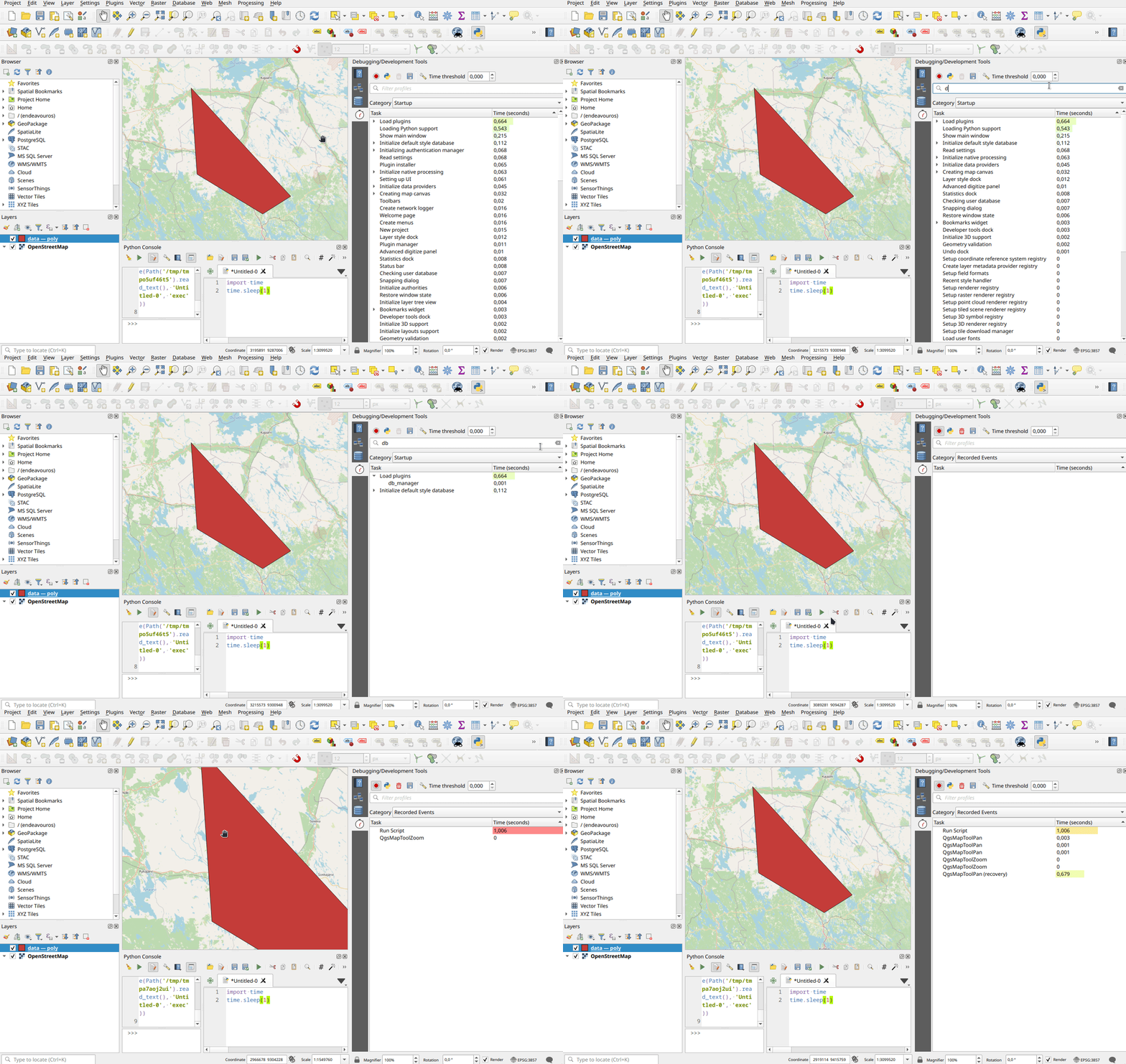
Once installed, the profiler extension is available in the QGIS Development Tools panel. Open QGIS Development Tools and navigate to the Profiler tab. The plugin extends the built-in profiler panel with additional controls.
Recording Profile Events
Click the Record button in the profiler panel, then interact with QGIS normally (pan, zoom, identify features, etc.). The profiler captures timing data for each interaction. Stop recording to inspect the results in the profiler tree.
Filtering and Searching Events
Use the filter text field to search for specific events by name. Adjust the time threshold spinner to hide events below a certain duration, making it easy to focus on bottlenecks and ignore noise.
Saving and Exporting Results
Click the Save button to export profiling data as a .prof file. This format
is compatible with standard Python profiling tools such as
gprof2dot and
snakeviz for further analysis
and visualization.
Python cProfile Integration
Toggle the cProfile button (Python icon) to record Python-level profiling data. This captures detailed call stacks and timing for all Python code executed while active. Results are logged to the console and can be saved to a stats file.
To profile an entire plugin lifecycle, use the @cprofile_plugin decorator:
from qgis_profiler.decorators import cprofile_plugin

@cprofile_plugin()
class MyPlugin:
    def initGui(self):
        ...

    def unload(self):
        ...
Performance Meters
The plugin includes three performance meters that can detect anomalies automatically:
Recovery Meter – measures how long QGIS takes to recover after a freeze
Thread Health Checker – monitors main thread responsiveness via background pinging
Map Rendering Meter – tracks map canvas rendering time
Enable and calibrate meters in Settings. Use the Calibrate button to auto-adjust thresholds to your system’s baseline performance.
Basic Profiling
Use the profile decorator to measure function execution time:
from qgis_profiler.decorators import profile

@profile
def my_heavy_function():
    # your code here
    pass

# Or with custom name and group
@profile(name="My Operation", group="My Plugin")
def another_function():
    pass
Context Manager
Use ProfilerWrapper as a context manager:
from qgis_profiler.profiler import ProfilerWrapper

profiler = ProfilerWrapper.get()

with profiler.profile("My Operation", "My Plugin"):
    # code to profile
    pass
cProfile Integration
Profile an entire plugin with cProfile to get detailed Python-level profiling:
from pathlib import Path
from qgis_profiler.decorators import cprofile_plugin

@cprofile_plugin(output_file_path=Path("/tmp/my_plugin_profile.prof"))
class MyPlugin:
    def __init__(self, iface):
        self.iface = iface

    def initGui(self):
        pass

    def unload(self):
        pass
The output .prof file can be analyzed with tools like
snakeviz:
pip install snakeviz
snakeviz /tmp/my_plugin_profile.prof
Event Recording
The plugin can record profiler events and various performance meters automatically. Use the record button in the profiler panel, or start recording programmatically:
from qgis_profiler.event_recorder import ProfilerEventRecorder

recorder = ProfilerEventRecorder(group_name="My Recordings")
recorder.start_recording()

# ... interact with QGIS ...

recorder.stop_recording()